VSCode for the C# Developer

summary
Step-by-step setup shows VS Code plus the .NET SDK and dotnet new templates create console, class library, Blazor Server and even WPF/WinForms projects that actually run and debug with breakpoints and CodeLens. Extension use is concrete: C# extension (OmniSharp) for scaffolded launch and task files, and a .NET user-secrets helper to store connection strings outside source control. Demos use the CLI (.NET run, dotnet watch, dotnet publish), fix HTTPS via launch.json, enable hot reload, and succeed end-to-end.
AI-written summary · about
chapters (15)
- 0:00VSCode for C# developers
- 0:44VSCode vs Visual Studio
- 5:22Setup VSCode for C#
- 7:56New C# project
- 13:18Debug C# code
- 17:42Console input & debugging
- 18:04Add class library
- 25:08Build Blazor server
- 27:39Debug Blazor apps
- 30:33Hot reload in Blazor
- 33:48User secrets setup
- 41:30WPF & WinForms in VSCode
- 48:41VSCode extensions & commands
- 50:05Configuring launch.json for debugging
- 51:09Q&A unit testing
related talks
 01h 03mWhat’s New in Visual Studio 2017 and VS Code
 59mUnleash the Power of Visual Studio Code
 01h 03mWhat’s New in VS 2017 + VS Code
 01h 01mModern day C# development in Visual Studio 2019
 30mVS Code Can Do That
 59mGetting the Most Out of .NET Development with Visual Studio
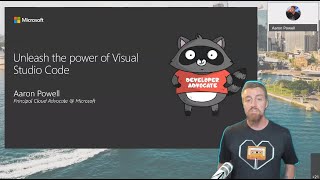 01h 00mUnleash the Power of VS Code
 52mHow Visual Studio Code Helps You Develop More Efficiently in C++